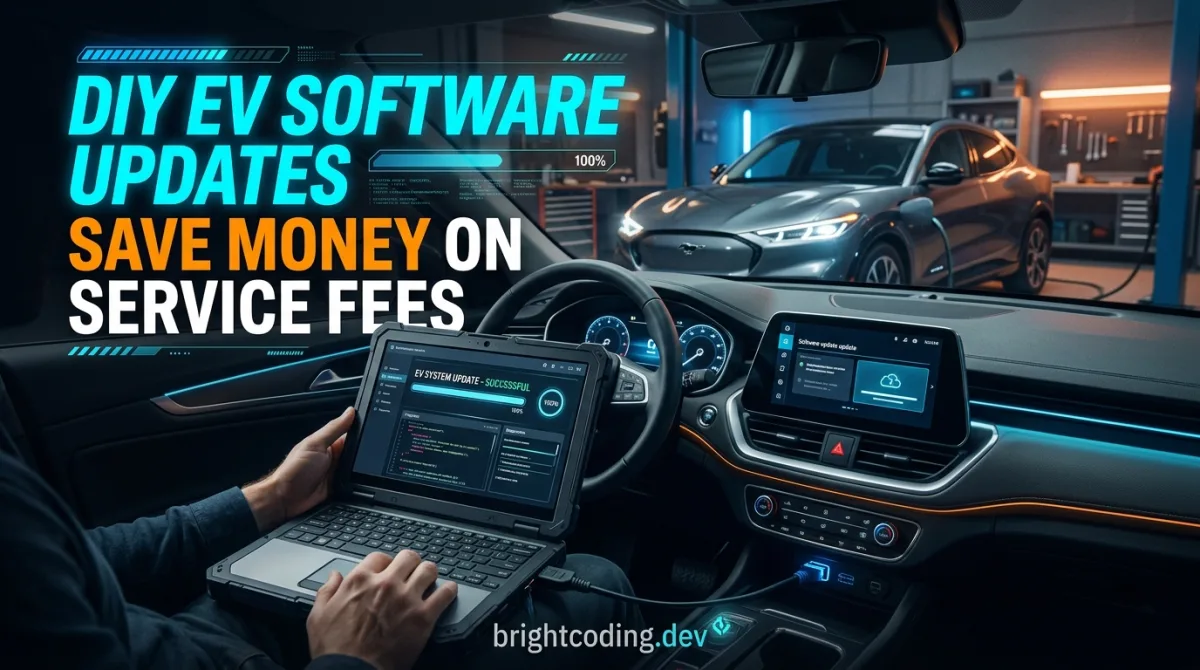
A dealer software update is often billed as an hour of labour plus a "shop supplies" line, and you drive home with the same car and a lighter wallet. Many of those updates are things you can trigger yourself from the touchscreen, a phone app, or a USB stick in your driveway. After reading this, you will be able to check whether an update is available, install the ones that are safe for an owner to do, and know exactly which ones to hand to a technician. Budget 20 to 40 minutes for the first attempt, most of which is waiting.
What you need before you start
- Your car's infotainment or settings menu, plus the manufacturer's official phone app if it supports over-the-air updates.
- A stable Wi-Fi connection where the car parks, or a home network the car can reach. Public hotspots and phone tethering are a bad idea for a multi-gigabyte download.
- A USB flash drive formatted to the filesystem your manual specifies (commonly FAT32 or exFAT) if your car uses manual USB updates. Check the manual, do not guess.
- The 12V battery in good health, or a trickle charger/maintainer connected during the update. This is the single most common cause of a failed flash.
- Your VIN and current software version, written down before you touch anything.
- No account needed for most USB-based updates. App-based updates normally need the account you already use for remote climate or charging.
Step 1: Find your current software version and write it down
Before you change anything, open the settings menu and hunt for "Software", "System information", "About", or "Version". Photograph the screen. You want the exact string, not "the latest one". If your car exposes separate versions for the infotainment head unit and the vehicle control modules, note both.
Why it matters: if an update fails, the first question anyone asks is what you started from. A photo answers it in two seconds.
Practical tip: the version number often lives behind a submenu two levels deep. On many cars it is under Settings > General > About, but naming varies wildly, so check your owner's manual index for "software version".
Step 2: Decide which update type you are dealing with
Not all updates are equal, and this is where DIY saves money or costs you a car.
- Infotainment and maps: navigation data, media apps, voice control, user interface. Owner-doable. Low risk.
- Over-the-air firmware for body and comfort modules: window behaviour, lighting logic, charging schedule quirks. Usually owner-doable if the manufacturer pushes it over the air.
- Traction battery, inverter, motor controller, or ADAS calibration firmware: high-voltage and safety-critical. Not DIY. Ever.
Why it matters: a failed infotainment flash means a reboot. A failed battery management flash can brick the car or, worse, leave it in an unsafe state. There is no upside to gambling here.
Practical tip: if the update notes mention "high-voltage system", "BMS", "inverter", "recall", or "safety", stop and book it in. If you are comparing which brands actually push useful over-the-air updates, our head-to-head EV comparisons flag that per model.
Step 3: Confirm an update is genuinely available
Do not assume the dealer knows something you do not. Check three places: the car's own update checker, the manufacturer's app, and the official owner portal for your VIN. If all three say you are current, you probably are, and the "update" you were quoted for may have been a diagnostic scan or a recall campaign rather than a software refresh.
Why it matters: owners regularly pay for an update that was already installed months earlier, or that the car would have pulled down free overnight.
Practical tip: note the release date of the version offered. If it predates your current version, you are being sold a downgrade or a reflash, and that is a conversation, not a purchase.
Step 4: Prepare the car properly
Park somewhere with good signal or Wi-Fi. Put the car in Park, apply the parking brake, and leave it plugged in only if the manual permits updates while charging, many do not. Turn off headlights, cabin fan, and any accessory drawing power. Close the doors so the car does not keep waking modules.
Why it matters: updates that lose power midway are the ones that end up on a tow truck.
Practical tip: connect a battery maintainer to the 12V battery if you own one. If the 12V is more than four or five years old or has been flat recently, replace or charge it first. Verify the correct maintainer type in your manual, some EVs want a specific charging profile for the auxiliary battery.
Step 5: Run the update and do not touch anything
Start the update from the menu or app and then leave the car alone. Do not open doors, do not start the climate control, do not unplug the charger, do not "just check progress" by cycling the ignition.
Why it matters: the car is writing firmware to modules that expect an uninterrupted session. Interruptions are the leading cause of half-flashed control units.
Practical tip: expect 15 to 90 minutes depending on the package. Set a timer and walk away. Some cars lock the screen and show a progress bar with no cancel option, that is normal.
Step 6: Verify the new version and test the basics
After the car reports completion, reopen the version screen and confirm the number changed. Then run a two-minute sanity check: lock and unlock, start and stop, check the charge port opens, test one USB port, and confirm the screen responds.
Why it matters: a successful flash that broke a comfort feature is easy to miss until you are 200 km from home.
Practical tip: if something misbehaves, note the exact symptom and version, then check our EV troubleshooting guides before assuming the update failed. Some quirks are settings that reset, not bugs.
Step 7: Handle the ones you should not DIY
For anything touching the high-voltage traction system, ADAS radar/camera calibration, or a recall, book the dealer. Ask for the campaign or TSB number in writing and ask whether the work is warranty or recall coverage, which is often free regardless of your service history.
Why it matters: recall software is frequently free even out of warranty, and paying for it is pure waste.
Practical tip: when you do go in, tell them the version you are on. It stops the "we updated everything" line when nothing changed. Our diagnostic and fuse guides help you describe symptoms precisely.
Pro tips
- Update at home overnight on Wi-Fi, not at a public charger. Downloads are large and a dropped connection wastes an hour.
- Screenshot the release notes before installing. They tell you what changed and give you a baseline if something regresses.
- Keep one USB stick dedicated to the car, formatted correctly and labelled. Hunting for the right stick is half the wasted time.
- If the app offers scheduled updates, set them for a time your car is parked and plugged in but not charging, if the manual allows it.
- Log every version change with a date in your phone notes. When you sell, that history is worth more than a stamped service book for software.
- Check the manufacturer's official site or owner portal for the authoritative update list. Forums are great for symptoms, unreliable for version numbers.
Common pitfalls
- Killing the ignition mid-update. The car looks frozen for long stretches. Leave it. If you must know, watch the app from inside the house, not by touching the car.
- Weak 12V battery. This causes most "update failed, car won't start" posts. Charge or replace the auxiliary battery before you begin.
- Installing a USB package from an unofficial source. Only use files from the manufacturer. A corrupted or wrong-region file can leave the head unit unusable.
- Assuming the dealer did the update. Ask for the before and after version numbers in writing. If they cannot provide them, the update may not have happened.
- DIY-ing a safety or high-voltage module because the menu allowed it. If the car offers it but it touches braking, steering, battery, or driver assistance, hand it over.
Useful resources
Use the EV model directory to find owner manuals and update methods for your exact model, and the free EV calculators and tools to estimate charging and running costs so you can see what that dealer visit actually cost you. The EV blog covers ownership costs and maintenance in more depth. Outside this site, the manufacturer's official owner portal and your printed owner's manual are the only sources worth trusting for version numbers and procedure.
FAQ
Will a DIY update void my warranty? Installing an official over-the-air or manufacturer-supplied USB update does not normally void anything, because the manufacturer pushed it. Flashing unofficial firmware can. If in doubt, ask the dealer in writing before you start.
How long does an EV software update take? Infotainment and map updates often run 20 to 60 minutes. Larger vehicle-wide packages can take 90 minutes or more. The car may be undrivable during the process, so plan around it.
Can I update while the car is charging? Sometimes, but many manuals forbid it. Check yours. If it is allowed, a low charge rate is safer than DC fast charging during a flash.
What if the update fails halfway? Do not panic and do not keep retrying blindly. Leave the car, check the app, and if it will not complete, contact the dealer or manufacturer support with your before-version screenshot. Repeated failed attempts can make things worse.
Do I still need dealer servicing at all? Yes for high-voltage inspection, brake fluid, coolant, and safety-critical firmware. The money you save is on the routine software and map updates you can do at home.
One last thing
The first update feels nerve-wracking because you cannot see what the car is doing. By the third one you will treat it like a phone update: plug in, start it, walk away. Learn your version screen, keep a good 12V battery, and know the line between comfort software and safety software. That alone saves a service visit or two a year.